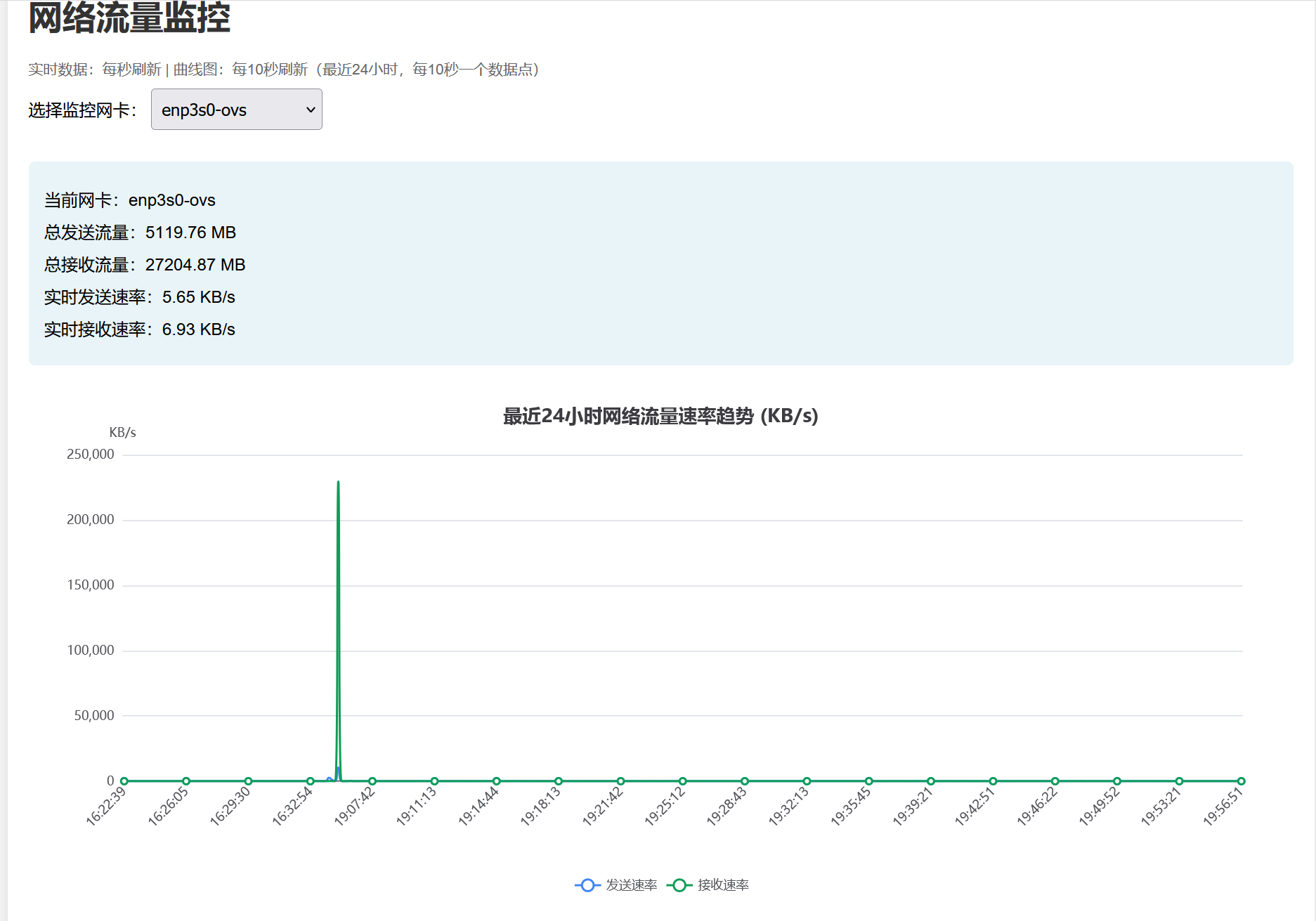
看到论坛里大家都需要一个网卡流量监测的软件,就用ai写了一个,本人亲测用效:
访问 http://飞牛NAS_IP:8080
要修改端口的话找到python文件中这一行:
app.run(host='0.0.0.0', port=8080, debug=False)
一、前置准备:安装依赖
1. ssh连接到飞牛,sudo -i 提升权限
2. 安装核心依赖包(仅适用于飞牛nas)
# 更新源(确保能找到包)
apt update

# 安装flask和psutil的系统包
apt install -y python3-flask python3-psutil
二、创建目录(统一存放文件)
mkdir -p ~/network_monitor/templates
cd ~/network_monitor
三、编写前端页面(实时展示+曲线图)
cat > ~/network_monitor/templates/index.html << 'EOF'
<!DOCTYPE html>
<html lang="zh-CN">
<head>
    <meta charset="UTF-8">
    <title>网络流量监控(24小时/10秒刷新)</title>
    <script src="https://cdn.jsdelivr.net/npm/echarts/dist/echarts.min.js"></script>
    <style>
        body { font-family: Arial, sans-serif; margin: 20px; background-color: #f5f5f5; }
        .container { max-width: 1200px; margin: 0 auto; background: white; padding: 20px; border-radius: 8px; box-shadow: 0 0 10px rgba(0,0,0,0.1); }
        .stats { margin: 20px 0; padding: 15px; background: #e8f4f8; border-radius: 6px; }
        .stat-item { margin: 10px 0; font-size: 16px; }
        #chart { width: 100%; height: 500px; margin-top: 20px; }
        select { padding: 8px; font-size: 16px; margin-bottom: 10px; }
        .title { color: #333; margin-bottom: 20px; }
        .refresh-tip { color: #666; font-size: 14px; margin-bottom: 10px; }
    </style>
</head>
<body>
    <div class="container">
        <h1 class="title">网络流量监控</h1>
        <div class="refresh-tip">实时数据:每秒刷新 | 曲线图:每10秒刷新(最近24小时,每10秒一个数据点)</div>

        <label for="interface">选择监控网卡:</label>
        <select id="interface">
            {% for iface in interfaces %}
                <option value="{{ iface }}">{{ iface }}</option>
            {% endfor %}
        </select>

        <!-- 实时数据区(每秒刷新) -->
        <div class="stats">
            <div class="stat-item">当前网卡:<span id="current-interface">--</span></div>
            <div class="stat-item">总发送流量:<span id="total-sent">0.00</span> MB</div>
            <div class="stat-item">总接收流量:<span id="total-recv">0.00</span> MB</div>
            <div class="stat-item">实时发送速率:<span id="sent-rate">0.00</span> KB/s</div>
            <div class="stat-item">实时接收速率:<span id="recv-rate">0.00</span> KB/s</div>
        </div>

        <!-- 曲线图(每10秒强制刷新,光滑曲线) -->
        <div id="chart"></div>
    </div>

    <script>
        // 初始化图表
        var chart = echarts.init(document.getElementById('chart'));
        var currentInterface = "";

        // 刷新间隔(从后端传过来)
        var realTimeRefresh = {{ real_time_refresh }};  // 1000ms = 1秒
        var chartRefresh = {{ chart_refresh }};        // 10000ms = 10秒

        // 完整的图表配置(核心:补全所有配置,避免初始化为空)
        function getChartOption(timestamp, sent, recv) {
            return {
                title: { text: '最近24小时网络流量速率趋势 (KB/s)' },
                tooltip: {
                    trigger: 'axis',
                    formatter: function(params) {
                        return params[0].name + '<br/>' +
                               params[0].seriesName + ': ' + params[0].data + ' KB/s<br/>' +
                               params[1].seriesName + ': ' + params[1].data + ' KB/s';
                    }
                },
                legend: { data: ['发送速率', '接收速率'] },
                grid: { left: '3%', right: '4%', bottom: '15%', containLabel: true },
                xAxis: {
                    type: 'category',
                    data: timestamp,
                    axisLabel: {
                        interval: Math.ceil(timestamp.length / 20),  // 自动调整标签密度
                        rotate: 45    // 旋转避免重叠
                    }
                },
                yAxis: { type: 'value', name: 'KB/s' },
                series: [
                    {
                        name: '发送速率',
                        type: 'line',
                        data: sent,
                        smooth: true,  // 光滑曲线
                        lineStyle: { width: 2 },  // 线条加粗
                        itemStyle: { color: '#4285F4' }
                    },
                    {
                        name: '接收速率',
                        type: 'line',
                        data: recv,
                        smooth: true,
                        lineStyle: { width: 2 },
                        itemStyle: { color: '#0F9D58' }
                    }
                ]
            };
        }

        // 更新实时数据(每秒)
        function updateRealTimeStats() {
            fetch(`/api/stats/${currentInterface}`)
                .then(response => response.json())
                .then(data => {
                    if (data.error) {
                        **(data.error);
                        return;
                    }
                    document.getElementById('total-sent').textContent = data.total_sent;
                    document.getElementById('total-recv').textContent = data.total_recv;
                    document.getElementById('sent-rate').textContent = data.sent_rate;
                    document.getElementById('recv-rate').textContent = data.recv_rate;
                })
                .catch(error => console.error('实时数据更新失败:', error));
        }

        // 强制更新曲线(每10秒必执行,补全配置)
        function updateChart() {
            fetch('/api/history')
                .then(res => res.json())
                .then(history => {
                    // 用完整配置刷新图表
                    chart.setOption(getChartOption(history.timestamp, history.sent, history.recv), true);
                })
                .catch(error => console.error('图表更新失败:', error));
        }

        // 页面初始化
        function initPage() {
            currentInterface = document.getElementById('interface').value;
            document.getElementById('current-interface').textContent = currentInterface;
            updateRealTimeStats();
            updateChart();
        }

        // 页面加载完成后启动
        window.onload = function() {
            initPage();
            // 实时数据每秒刷新
            setInterval(updateRealTimeStats, realTimeRefresh);
            // 曲线每10秒强制刷新
            setInterval(updateChart, chartRefresh);
        };

        // 网卡切换事件
        document.getElementById('interface').addEventListener('change', function() {
            currentInterface = this.value;
            document.getElementById('current-interface').textContent = currentInterface;
            updateRealTimeStats();
            updateChart();
        });

        // 窗口自适应
        window.addEventListener('resize', function() {
            chart.resize();
        });
    </script>
</body>
</html>
EOF
四、编写后端逻辑(数据采集+API接口)
cat > ~/network_monitor/network_monitor.py << 'EOF'
from flask import Flask, render_template, jsonify
import psutil
import time
from datetime import datetime, timedelta

app = Flask(__name__)

# 核心配置
MAX_HISTORY_SECONDS = 24 * 3600  # 保留最近24小时数据
SAMPLE_INTERVAL = 10              # 每10秒采集一个数据点(保证曲线10秒有新数据)
REAL_TIME_REFRESH = 1             # 实时数据每秒刷新
CHART_REFRESH = 10                # 曲线每10秒刷新

# 历史数据存储(10秒一个点,最多24小时)
history_data = {
    "timestamp": [],  # 格式:HH:MM:SS
    "sent": [],       # 发送速率 (KB/s)
    "recv": []        # 接收速率 (KB/s)
}

# 临时累计数据(用于计算10秒平均速率)
temp_data = {
    "start_time": None,
    "sent_bytes": 0,
    "recv_bytes": 0
}

# 全局变量(实时速率计算)
last_io = None
last_time = None

# 获取网卡列表(排除回环地址)
def get_network_interfaces():
    interfaces = []
    for name, addrs in psutil.net_if_addrs().items():
        if name != "lo":
            interfaces.append(name)
    return interfaces if interfaces else ["eth0"]

# 初始化临时数据
def init_temp_data():
    temp_data["start_time"] = time.time()
    temp_data["sent_bytes"] = 0
    temp_data["recv_bytes"] = 0

# 获取实时流量 + 每10秒采样
def get_network_stats(interface):
    global last_io, last_time
    try:
        # 获取网卡IO数据
        net_io = psutil.net_io_counters(pernic=True).get(interface, None)
        if not net_io:
            return {"error": f"网卡 {interface} 不存在"}

        current_time = time.time()
        now = datetime.now()

        # 首次调用初始化
        if last_io is None or last_time is None:
            last_io = net_io
            last_time = current_time
            init_temp_data()
            return {
                "interface": interface,
                "total_sent": round(net_io.bytes_sent / 1024 / 1024, 2),
                "total_recv": round(net_io.bytes_recv / 1024 / 1024, 2),
                "sent_rate": 0.0,
                "recv_rate": 0.0
            }

        # 计算实时速率(每秒更新)
        time_diff = current_time - last_time
        if time_diff < 0.1:
            realtime_sent = 0.0
            realtime_recv = 0.0
        else:
            realtime_sent = (net_io.bytes_sent - last_io.bytes_sent) / 1024 / time_diff
            realtime_recv = (net_io.bytes_recv - last_io.bytes_recv) / 1024 / time_diff

        # 累计10秒内的字节数
        temp_data["sent_bytes"] += (net_io.bytes_sent - last_io.bytes_sent)
        temp_data["recv_bytes"] += (net_io.bytes_recv - last_io.bytes_recv)

        # 更新全局变量
        last_io = net_io
        last_time = current_time

        # 每10秒生成一个数据点(核心)
        if current_time - temp_data["start_time"] >= SAMPLE_INTERVAL:
            # 计算10秒平均速率
            avg_sent = temp_data["sent_bytes"] / 1024 / SAMPLE_INTERVAL
            avg_recv = temp_data["recv_bytes"] / 1024 / SAMPLE_INTERVAL

            # 添加到历史数据
            history_data["timestamp"].append(now.strftime("%H:%M:%S"))
            history_data["sent"].append(round(avg_sent, 2))
            history_data["recv"].append(round(avg_recv, 2))

            # 清理超过24小时的旧数据
            max_points = int(MAX_HISTORY_SECONDS / SAMPLE_INTERVAL)
            if len(history_data["timestamp"]) > max_points:
                history_data["timestamp"].pop(0)
                history_data["sent"].pop(0)
                history_data["recv"].pop(0)

            # 重置临时数据
            init_temp_data()

        # 返回实时数据
        return {
            "interface": interface,
            "total_sent": round(net_io.bytes_sent / 1024 / 1024, 2),
            "total_recv": round(net_io.bytes_recv / 1024 / 1024, 2),
            "sent_rate": round(realtime_sent, 2),
            "recv_rate": round(realtime_recv, 2)
        }
    except Exception as e:
        return {"error": str(e)}

# 首页路由
@app.route('/')
def index():
    interfaces = get_network_interfaces()
    return render_template(
        'index.html',
        interfaces=interfaces,
        real_time_refresh=REAL_TIME_REFRESH*1000,
        chart_refresh=CHART_REFRESH*1000
    )

# 实时数据API
@app.route('/api/stats/<interface>')
def api_stats(interface):
    stats = get_network_stats(interface)
    return jsonify(stats)

# 历史数据API(曲线用)
@app.route('/api/history')
def api_history():
    return jsonify(history_data)

if __name__ == '__main__':
    init_temp_data()
    app.run(host='0.0.0.0', port=8080, debug=False)
EOF
五、手动运行/停止
1. 启动程序(后台静默运行)
cd ~/network_monitor
nohup python3 network_monitor.py > /dev/null 2>&1 &
访问地址:http://服务器IP:8080
2. 停止程序
pkill -f network_monitor.py
飞牛 NAS 开机自启
全程在 root@fnOS:~# 下执行:
第一步:用screen实现开机自启(飞牛NAS专用,永不卡)
1. 安装screen(飞牛可能没有,先装)
apt install -y screen
2. 一键创建开机自启脚本(核心)
cat > /etc/rc.local << 'EOF'
#!/bin/bash
# 等待网络启动完成
sleep 10
# 用screen后台启动监控程序(路径是你的/root/network_monitor)
screen -dmS network-monitor python3 /root/network_monitor/network_monitor.py
exit 0
EOF
3. 给脚本加执行权限
chmod +x /etc/rc.local
4. 立即启动程序(不用等重启)
screen -dmS network-monitor python3 /root/network_monitor/network_monitor.py
第三步:验证是否成功
# 看screen会话是否存在(有就是成功)
screen -ls
# 输出类似:1234.network-monitor (Detached)
访问 http://飞牛NAS_IP:8080,能看到监控页面就彻底搞定!
后续维护命令(超简单)
| 功能 |
命令 |
| 查看程序日志 |
screen -r network-monitor(退出按Ctrl+A+D) |
| 停止程序 |
screen -S network-monitor -X quit |
| 重启程序 |
screen -S network-monitor -X quit && screen -dmS network-monitor python3 /root/network_monitor/network_monitor.py |
验证开机自启(可选)
# 重启NAS
reboot
# 重启后执行
screen -ls
能看到 network-monitor会话,访问页面正常,就说明开机自启生效了。




 2026-2-15 20:07:22


 2026-2-21 21:31:45 楼主
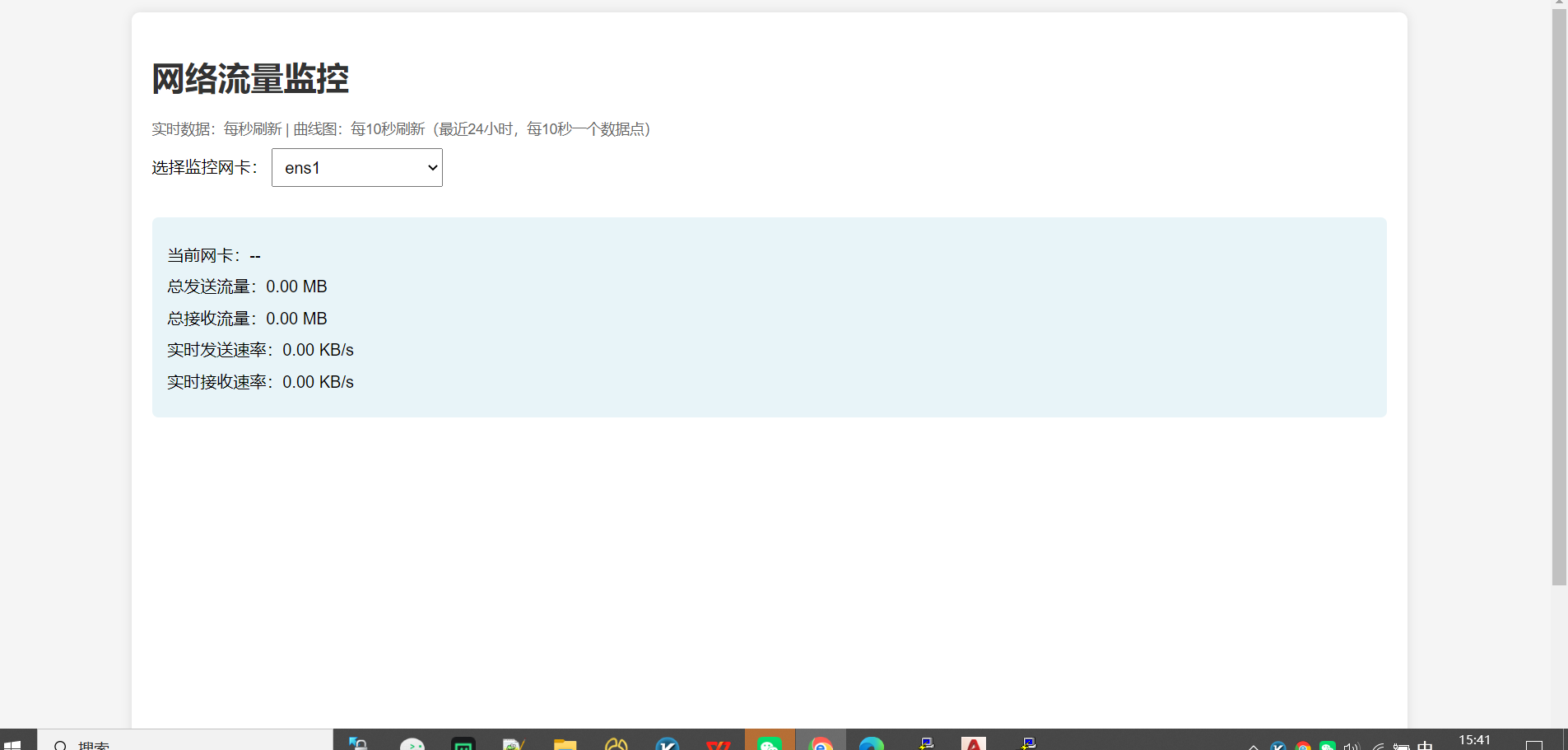 不显示啊
不显示啊